Create a Stunning Headshot with Canva Headshot Generator
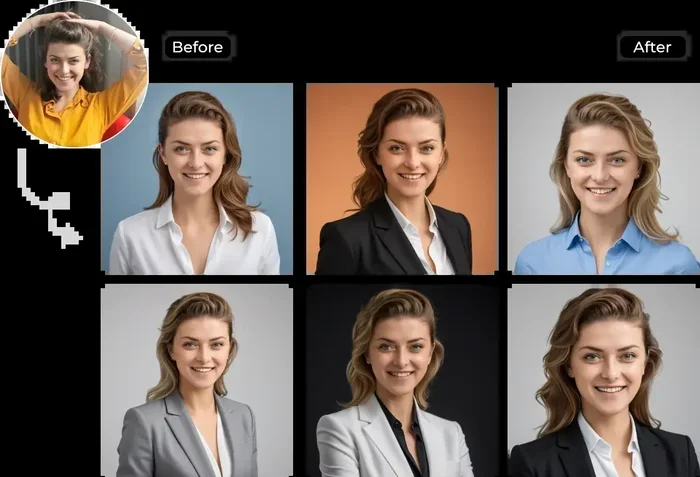
The Canva headshot generator lets you create professional headshots in minutes using AI-powered tools. You can swap backgrounds, adjust lighting, and customize your look without hiring a photographer. It is a fast, affordable, and easy way to upgrade your online presence for LinkedIn, resumes, or social media.
A great headshot can change how people see you online. Whether you are updating your LinkedIn profile, building a personal brand, or polishing your resume, your photo matters. The Canva headshot generator makes it simple to create a professional-looking photo without any design experience. You do not need a fancy camera or a studio. You just need a computer or phone and a few minutes. In this guide, we will walk you through everything you need to know about using the Canva headshot generator to create headshots that look sharp and polished.
If you are also setting up a home office and need to manage your power setup, you might want to check out how much a generator costs for a house to keep your workspace running smoothly while you focus on your online presence.
## What Is the Canva Headshot Generator?
The Canva headshot generator is a free or low-cost tool inside Canva that uses artificial intelligence to help you create professional headshots. It takes your existing photo and enhances it with smart editing features. You can change the background, fix the lighting, and add professional touches with just a few clicks.
### How Does It Work?
Using the Canva headshot generator is simple. You upload a photo of yourself. The AI analyzes your face and the image around you. Then it offers suggestions and tools to improve your shot. You can pick a new background, adjust your skin tone, and sharpen your features. The whole process takes just a few minutes.
### Why Do People Love It?
People love the Canva headshot generator because it removes the need for expensive photoshoots. You get professional results at a fraction of the cost. It also gives you full control over how your photo looks. You can try different styles and backgrounds until you find the perfect one. This flexibility is something you rarely get with a traditional photographer.
## Key Features of the Canva Headshot Generator
The Canva headshot generator comes packed with features that make creating professional photos easy and fun. Let us look at the most useful ones.
### AI-Powered Background Removal
One of the best features is the ability to remove your background instantly. The AI detects your face and separates it from the background. You can then replace it with a solid color, a blurred office scene, or any image you like. This feature alone saves hours of editing time.
### Lighting and Color Adjustments
The tool lets you adjust the lighting and color of your photo. You can brighten a dark image, warm up a cold tone, or even out skin tones. These small changes make a big difference in how professional your headshot looks.
### Built-In Templates and Frames
Canva offers dozens of headshot templates. You can choose different frame styles, aspect ratios, and layouts. Whether you need a square photo for LinkedIn or a rectangular one for a website banner, there is a template for you.
### One-Click Enhancements
With one click, the Canva headshot generator can sharpen your image, smooth your skin, and enhance your eyes. These AI-powered enhancements make you look polished without looking over-edited.
## How to Create a Professional Headshot with Canva
Creating a headshot with the Canva headshot generator is quick and easy. Follow these steps to get amazing results every time.
1. Open Canva and log in to your account.
2. Click on the Canva headshot generator tool.
3. Upload a clear photo of yourself. Make sure your face is well-lit and centered.
4. Let the AI process your image.
5. Choose a background that fits your purpose.
6. Adjust the lighting and color if needed.
7. Use the one-click enhancements to polish your photo.
8. Download your headshot in high resolution.
If you are using a generator to power your home office equipment during editing sessions, you might also want to explore what size generator for 50 amp RV options that can also serve as reliable backup power for your workspace.
### Best Practices for Uploading Your Photo
The quality of your final headshot depends on the photo you upload. Here are some tips for the best results.
– Use a well-lit photo with natural light.
– Make sure your face is clearly visible and centered.
– Avoid busy or distracting backgrounds.
– Use a high-resolution image for the best output.
– Smile naturally and keep your expression friendly.
## Benefits of Using the Canva Headshot Generator
There are many reasons to choose the Canva headshot generator over traditional methods. Let us break them down.
### Cost Savings
Hiring a professional photographer can cost anywhere from $100 to $500 or more for a single session. The Canva headshot generator is either free or costs a small monthly fee for Canva Pro. You can create unlimited headshots without breaking the bank.
### Time Efficiency
A professional photoshoot requires scheduling, traveling, and waiting. With Canva, you can create a headshot in under 10 minutes. This is perfect for people who need a photo quickly for a job application or a last-minute LinkedIn update.
### Complete Control
When you use a photographer, you get what you get. With Canva, you have full control. You can try different backgrounds, lighting settings, and styles until you are happy with the result. This level of control is incredibly empowering.
### Consistency Across Platforms
If you manage multiple social media profiles or a business website, you need consistent headshots. The Canva headshot generator lets you create matching photos for every platform in one sitting.
## Canva Headshot Generator vs. Professional Photographer
It is natural to wonder how the Canva headshot generator compares to hiring a professional. Here is a side-by-side look.
| Feature | Canva Headshot Generator | Professional Photographer |
|—|—|—|
| Cost | Free or low monthly fee | $100 to $500+ per session |
| Time Needed | 5 to 10 minutes | 1 to 2 hours |
| Background Options | Unlimited digital backgrounds | Limited by studio setup |
| Editing Control | Full DIY control | Depends on photographer |
| Convenience | Work from anywhere | Must travel to studio |
| Turnaround Time | Instant | Days to weeks |
If you are looking for a reliable power source to keep your editing setup running at home, you might also want to learn about how to make a generator quiet so your workspace stays comfortable while you create the perfect headshot.
### When to Choose Each Option
Choose the Canva headshot generator when you need a quick, affordable, and professional-looking photo. Choose a professional photographer when you need a full-body shot, a creative portfolio, or a very specific artistic vision. For most everyday needs like LinkedIn, resumes, and social media, the Canva headshot generator is more than enough.
## Tips for the Perfect Headshot
Even with a powerful tool like the Canva headshot generator, a few extra tips can take your photo from good to great.
### Lighting Matters Most
Good lighting makes all the difference. Natural light from a window is your best friend. Avoid harsh overhead lights that create shadows on your face. If you are indoors, position yourself so the light comes from the front or slightly to the side.
### Wardrobe and Style
Wear something that represents you or your brand. Solid colors work best for headshots because they do not distract from your face. Avoid busy patterns or clothing that blends into your background.
### Keep It Natural
The goal of a headshot is to look like you, just at your best. Avoid heavy filters or over-editing. The Canva headshot generator enhances your features without changing who you are. Keep the final result looking natural and approachable.
### Get Feedback Before Finalizing
Before you download your final headshot, ask a friend or colleague for their opinion. A fresh pair of eyes can spot things you might have missed. They can tell you if the photo looks natural and professional.
## Common Mistakes to Avoid
Even with the best tools, people make mistakes when creating headshots. Here are some common ones to watch out for.
– Using a blurry or low-resolution photo as your starting image.
– Choosing a background that does not match your purpose.
– Over-editing your face until you do not look like yourself.
– Ignoring the lighting and ending up with dark or washed-out photos.
– Forgetting to check how the headshot looks on different devices.
## Expert Insights on Headshot Quality
Professional photographers and digital editors agree that the quality of your headshot affects your first impression. A strong headshot builds trust and credibility. According to recent studies, profiles with professional headshots receive more views and engagement. The Canva headshot generator bridges the gap between professional quality and DIY convenience. It gives you the tools to look your best without the high costs or long wait times.
## Key Takeaways for Your Next Headshot
The Canva headshot generator is a game-changer for anyone who needs a professional photo quickly and affordably. It uses AI to handle the heavy lifting, so you can focus on looking your best. Whether you are a job seeker, a freelancer, or a business owner, this tool fits your needs. Try it today and see how easy it is to create a headshot that makes a strong first impression.
## Conclusion
The Canva headshot generator is one of the easiest and most affordable ways to create professional headshots. It offers powerful AI tools, beautiful templates, and complete creative control. You do not need to be a designer or spend hundreds of dollars to get great results. With just a few clicks, you can have a headshot that looks polished, natural, and ready for any platform. Give it a try and see the difference for yourself.
If you are also thinking about your home power needs, check out how much a home generator costs to make sure your workspace stays powered up while you perfect your online presence.
Key Takeaways
- Easy to Use: The Canva headshot generator works with just a few clicks, making it perfect for beginners.
- AI-Powered Editing: Smart tools remove backgrounds, enhance lighting, and sharpen your photo automatically.
- Cost Effective: You save hundreds of dollars compared to hiring a professional photographer.
- Customizable Templates: Choose from dozens of styles, backgrounds, and framing options.
- Fast Results: Get a polished headshot in under 10 minutes.
- Great for Many Uses: Perfect for LinkedIn, resumes, websites, and social media profiles.
Frequently Asked Questions
Is the Canva headshot generator free to use?
Yes, the basic Canva headshot generator features are free. You can access it with a free Canva account. However, Canva Pro offers additional templates, backgrounds, and premium features for a small monthly fee.
Can I use the Canva headshot generator on my phone?
Absolutely. Canva works on both desktop and mobile devices. You can create and edit headshots right from your phone or tablet. The experience is smooth and user-friendly on all devices.
How long does it take to create a headshot with Canva?
Most people can create a polished headshot in 5 to 10 minutes. The AI processes your photo quickly, and the editing tools are simple to use. You can experiment with different styles until you find the perfect look.
Will my headshot look natural or over-edited?
The Canva headshot generator is designed to enhance your features while keeping you looking natural. You have full control over the editing level. The key is to use subtle adjustments rather than heavy filters.
Can I use my Canva headshot for commercial purposes?
Yes, you can use headshots created with Canva for commercial purposes. However, make sure you have the rights to any background images or templates you use. Canva Pro provides broader usage rights for its content.
What makes a good headshot for LinkedIn?
A good LinkedIn headshot is clear, well-lit, and professional. Use a neutral or business-friendly background. Dress appropriately for your industry. The Canva headshot generator helps you achieve all of this with ease.