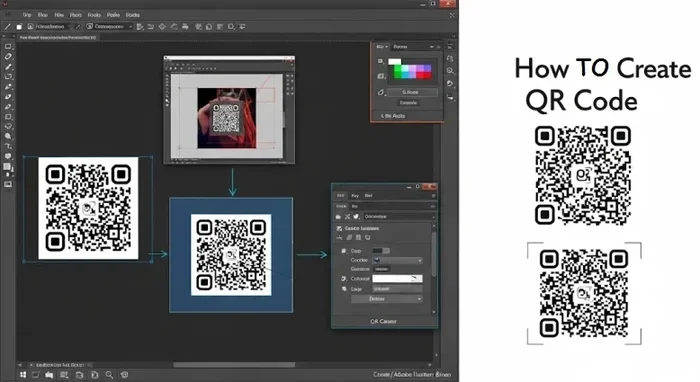
Adobe QR Code Generator Create Professional QR Codes
The Adobe QR code generator lets you create professional QR codes right from your Adobe tools. Whether you use Acrobat, Illustrator, or Creative Cloud, generating custom QR codes is simple and fast. This guide covers everything from setup to design tips, so you can make trackable, branded QR codes that look great and work perfectly for your business needs.
QR codes are everywhere today. You see them on restaurant menus, business cards, posters, and product packaging. They make it easy for people to jump to a website, download an app, or view contact info with just a quick scan. If you already use Adobe tools for your design work, you might be wondering how to create these codes without switching to a separate app. The good news is that an Adobe QR code generator built into your favorite Adobe apps makes this process a breeze.
In this guide, we will walk you through everything you need to know about creating professional QR codes using Adobe software. From choosing the right type of code to designing codes that match your brand, you will find practical tips and clear steps you can follow right away. Let us dive in and get you creating codes that look sharp and work flawlessly.
Key Takeaways
- Adobe Tools Support QR Codes: You can generate QR codes directly in Adobe Acrobat, Illustrator, and other Creative Cloud apps.
- Customization Is Easy: Change colors, add logos, and adjust error correction to make your codes stand out.
- Two Types of QR Codes: Static codes link to fixed content, while dynamic codes let you track scans and update destinations.
- Testing Matters: Always scan your code before sharing it to ensure it works on all devices.
- Branding Boosts Scans: Well-designed QR codes with your brand colors get more scans than generic black-and-white codes.
📑 Table of Contents
- What Is an Adobe QR Code Generator?
- Why Use Adobe for QR Code Creation?
- How to Create a QR Code in Adobe Acrobat Pro
- Designing Professional QR Codes in Adobe Illustrator
- Static vs Dynamic QR Codes: What You Need to Know
- Common Mistakes to Avoid When Creating QR Codes
- Quick Tips for Stunning QR Code Designs
- Key Takeaways
- Conclusion
What Is an Adobe QR Code Generator?
An Adobe QR code generator is a built-in feature or workflow within Adobe applications that lets you create QR codes without leaving your design environment. You do not need a third-party website or a separate app. Adobe tools like Acrobat Pro and Illustrator already have the functionality to generate and embed QR codes directly into your projects.
Think of it this way. Just like how a generator works to convert fuel into usable power, a QR code generator converts a URL or text string into a scannable image. The output is a square pattern made of black and white modules that any smartphone camera can read instantly.
Adobe makes this process seamless because you are already working in a professional design tool. Your QR codes will look clean, crisp, and ready for print or digital use. You get full control over size, color, and placement, all within the same workspace where you create your other designs.
Which Adobe Apps Support QR Code Generation?
Not all Adobe apps have the same QR code features. Here is a quick breakdown of the ones that do:
- Adobe Acrobat Pro: The easiest way to generate a QR code. You can create a code from any URL, email address, or text string right inside a PDF.
- Adobe Illustrator: Great for custom QR code designs. You can style the code, add branding elements, and export it in any format you need.
- Adobe InDesign: Useful for laying out QR codes in print materials like brochures, flyers, and magazines.
- Adobe Photoshop: Good for editing and stylizing QR code images after you generate them elsewhere.
Each app serves a different purpose, but they all help you produce professional QR codes that look polished and work reliably.
Why Use Adobe for QR Code Creation?
You might wonder why you should use Adobe instead of a free online QR code maker. There are several strong reasons that make Adobe the better choice for professionals.
Quality and Resolution
Online QR code generators often produce low-resolution images that look pixelated when printed. Adobe tools create vector-based QR codes that scale to any size without losing clarity. Whether you need a tiny code for a business card or a large code for a billboard, the quality stays sharp.
Brand Integration
When you create QR codes in Adobe, you can match them to your brand colors, add your logo in the center, and choose custom shapes for the finder patterns (the three big squares in a QR code). This level of customization helps your codes feel like a natural part of your brand identity rather than a generic afterthought.
Workflow Integration
Since Adobe apps are part of the Creative Cloud ecosystem, your QR codes live alongside your other design assets. You can save them in libraries, reuse them across projects, and export them in multiple formats including SVG, PNG, and PDF. This keeps your workflow fast and organized.
No Third-Party Dependencies
Using a free online tool means trusting a website with your data and URLs. Adobe keeps everything within its secure platform. You do not have to worry about your links being tracked, stored, or sold by a unknown third party.
How to Create a QR Code in Adobe Acrobat Pro
Adobe Acrobat Pro is the simplest way to generate a QR code. If you already have a PDF document open, you can add a scannable code in just a few clicks. Here is how to do it step by step.
Step 1: Open Your PDF Document
Launch Adobe Acrobat Pro and open the PDF where you want the QR code to appear. This could be a brochure, a business card template, or any other document you are designing.
Step 2: Access the QR Code Tool
Go to the Tools panel on the right side of the screen. Look for the Edit PDF tool and click on it. Then find the QR Code option in the top menu bar under the Tools section. Click on it to activate the QR code generator.
Step 3: Enter Your Content
A dialog box will appear asking you what you want the QR code to link to. You can enter:
- A website URL
- An email address
- A phone number
- A plain text message
- A vCard (digital business card)
- Wi-Fi network details
Type in your content and click Next.
Step 4: Customize the Code
Acrobat gives you basic customization options. You can choose the size of the code, set the error correction level, and pick between static and dynamic encoding. Error correction determines how much damage the code can handle and still be readable. Higher error correction means the code can tolerate more overlap with images or text.
Step 5: Place and Save
Click on your PDF where you want the QR code to appear. Drag to resize it as needed. Save your document, and your QR code is ready to share.
Much like learning how to start a generator follows a simple sequence of steps, creating a QR code in Acrobat follows a clear, repeatable process that gets faster every time you do it.
Designing Professional QR Codes in Adobe Illustrator
If you want full creative control over your QR code design, Adobe Illustrator is the best tool for the job. Illustrator lets you build QR codes from scratch and style them to match any brand.
Setting Up Your Document
Open Illustrator and create a new document. Choose a square canvas size, such as 500 by 500 pixels or 4 by 4 inches. This gives you plenty of room to work with the code and any design elements you want to add.
Generating the QR Code
Go to Object on the top menu, then select QR Code. A dialog box will pop up where you can enter your data. Choose the content type, enter your URL or text, and pick a error correction level. Illustrator generates a live QR code object that you can edit at any time.
Styling Your Code
Here is where the magic happens. You can:
- Change the foreground and background colors to match your brand palette
- Round the corners of the code modules for a softer look
- Replace the standard finder patterns with custom shapes
- Add a logo or image in the center of the code
- Apply gradients or patterns to the code modules
Just remember that too much styling can make the code unreadable. Always test your design with a QR code scanner before finalizing it. Keep enough contrast between the code and the background, and do not cover more than about 20 percent of the code area with your logo or design elements.
Exporting Your QR Code
When your design is ready, export it in the format you need. SVG is best for print because it is vector-based and scales perfectly. PNG works well for digital use. Export at a high resolution (at least 300 DPI for print) to ensure the code scans cleanly.
Static vs Dynamic QR Codes: What You Need to Know
Understanding the difference between static and dynamic QR codes is important for choosing the right approach for your project.
Static QR Codes
A static QR code links directly to a fixed destination. Once you create it, the destination cannot be changed. Static codes are simple to make and work well for things like:
- Links to a specific webpage
- Email addresses
- Phone numbers
- Plain text information
The advantage of static codes is that they do not require any external service or subscription. They work offline and do not depend on a third-party server to function.
Dynamic QR Codes
A dynamic QR code acts as a shortcut. It points to an intermediate URL that you can change at any time without reprinting the code. This is incredibly useful for:
- Marketing campaigns where you want to update the landing page
- Tracking scan data like location, device type, and time of scan
- A/B testing different destinations with the same code
Dynamic codes require a QR code management service. Adobe Acrobat and Illustrator create static codes natively. For dynamic codes, you would generate the static code in Adobe and then use a service like QR Code Generator PRO or Beaconstac to make it dynamic.
Which Should You Choose?
For most business uses, dynamic codes are the better choice because they give you flexibility and analytics. For simple, one-time uses like linking to a menu or a contact page, static codes work perfectly fine.
Think of it this way. Connecting your QR code to a trackable destination is a bit like connecting a generator to your house it requires a bit more setup, but the results are far more powerful and useful over time.
Common Mistakes to Avoid When Creating QR Codes
Even with a powerful tool like Adobe, it is easy to make mistakes that cause your QR codes to fail. Here are the most common pitfalls and how to avoid them.
Using Low Resolution for Print
Never export a QR code at screen resolution (72 DPI) if you plan to print it. Always use 300 DPI or higher. A blurry code will not scan properly, and that wastes all the effort you put into the design.
Ignoring Error Correction
Error correction is your safety net. If your QR code will overlap with images or sit on a busy background, use a higher error correction level (H or Q). This adds more data redundancy so the code stays readable even when partially obscured.
Making the Code Too Small
There is a minimum size for QR codes to be scannable. As a general rule, do not make the printed code smaller than 1 by 1 inch. For codes placed far from the viewer, go bigger.
Skipping the Test Scan
Always test your QR code with multiple devices before sending it to print or publishing it online. Scan it with an iPhone, an Android phone, and a tablet. Make sure it works in different lighting conditions too.
Over-Styling the Code
Creative freedom is great, but there is a limit. If you change too many modules, invert too many colors, or cover too much of the code with graphics, scanners will struggle to read it. Keep the three finder patterns (the big squares) clearly visible and maintain strong contrast.
Quick Tips for Stunning QR Code Designs
Want your QR codes to look amazing? Follow these quick tips:
- Match your brand colors: Use your brand palette for the code modules and background. This makes the code feel cohesive with your other marketing materials.
- Add a call to action: Place a short text near the code like Scan to Visit Our Website or Point Your Camera Here. This tells people exactly what to do.
- Use a logo placeholder: Put your company logo in the center, but keep it small enough that it does not block too many code modules.
- Round the corners: Slightly rounded code modules give a modern, friendly feel that works well for consumer brands.
- Create a frame: Add a white border around the code with rounded corners. This improves scan reliability and makes the code pop on the page.
- Test at actual size: Always test your code at the exact size it will be printed or displayed. What looks fine on screen might not scan at a tiny size.
These tips apply whether you are generating codes in Acrobat for a quick PDF link or designing a full custom code in Illustrator for a print campaign. The key is balancing creativity with functionality.
Key Takeaways
- Adobe Apps Make QR Code Creation Easy: Acrobat, Illustrator, and InDesign all have built-in tools to generate professional QR codes without any extra software.
- Quality and Brand Consistency Matter: Adobe gives you full control over resolution, color, and styling so your codes look professional and on-brand.
- Static and Dynamic Codes Serve Different Needs: Choose static for simple fixed links and dynamic when you need tracking and flexibility.
- Always Test Before Publishing: Scan your code on multiple devices to make sure it works perfectly in real-world conditions.
- Avoid Common Design Mistakes: Keep error correction high enough, maintain minimum size, and do not over-style your codes.
- Creative Freedom Has Limits: While you can customize QR codes extensively, always prioritize scannability over aesthetics.
Conclusion
Creating professional QR codes with an Adobe QR code generator is straightforward, powerful, and deeply integrated into your existing design workflow. Whether you are using Acrobat for quick links or Illustrator for fully branded codes, Adobe gives you the tools and flexibility to produce codes that look great and scan flawlessly every time.
The process is simple, the results are professional, and you do not need to leave your favorite Adobe app to do it. By following the tips and steps in this guide, you can create QR codes that serve your business, impress your audience, and stand out from the crowd of generic black-and-white codes.
Start experimenting with your own QR codes today. Try different styles, test various error correction levels, and see how a well-designed code can elevate your marketing materials and streamline the way people interact with your brand. The Adobe QR code generator is waiting for you, and your next great design is just a few clicks away.
Frequently Asked Questions
Can I create a QR code for free in Adobe Acrobat?
Yes, Adobe Acrobat Pro includes a built-in QR code generator at no extra cost. You simply go to the Tools panel, select Edit PDF, and choose the QR Code option. The feature is included with your Acrobat Pro subscription, so there are no additional fees.
What is the best error correction level for QR codes?
For most uses, level M or Q works well. If your QR code will overlap with images or text, use level H, which offers the highest error correction. Keep in mind that higher error correction makes the code slightly more complex, which can be harder for older scanners to read.
Can I make a QR code with a logo in Adobe Illustrator?
Absolutely. After generating the QR code in Illustrator, you can place your logo in the center using the Place command. Just make sure the logo does not cover more than about 20 percent of the code area, and always test the scan before finalizing your design.
Do I need an internet connection to scan an Adobe-generated QR code?
For static QR codes that link to a URL, the person scanning needs an internet connection to open the destination. The QR code itself does not need the internet to be read. For dynamic QR codes, the intermediate redirect also requires an internet connection to function.
Can I export Adobe QR codes in vector format?
Yes. In Illustrator, you can export your QR code as an SVG file, which is a scalable vector format. In Acrobat, you can save the PDF containing the QR code, which also preserves vector quality. Vector formats are ideal for print because they scale without any loss of quality.
How do I track scans on my QR codes created with Adobe?
Adobe’s native tools create static QR codes, which do not include tracking. To add scan tracking, you can create a static code in Adobe and then use a QR code management service to make it dynamic. Services like Beaconstac or QR Code Generator PRO provide detailed scan analytics while keeping your code design intact.