The Best Outlook Signature Generator for Professionals
The best outlook signature generator helps professionals create polished, consistent email signatures in minutes. You no longer need to manually format contact details, logos, or social links every time you compose a message. This guide walks you through top tools, key features, and practical steps to build a signature that looks professional and saves you time daily.
Every email you send is a tiny marketing opportunity. Your outlook signature generator turns that opportunity into a powerful branding tool without any extra effort. Whether you work solo or lead a team, a well-crafted email signature builds credibility, shares contact info, and keeps your name front and center.
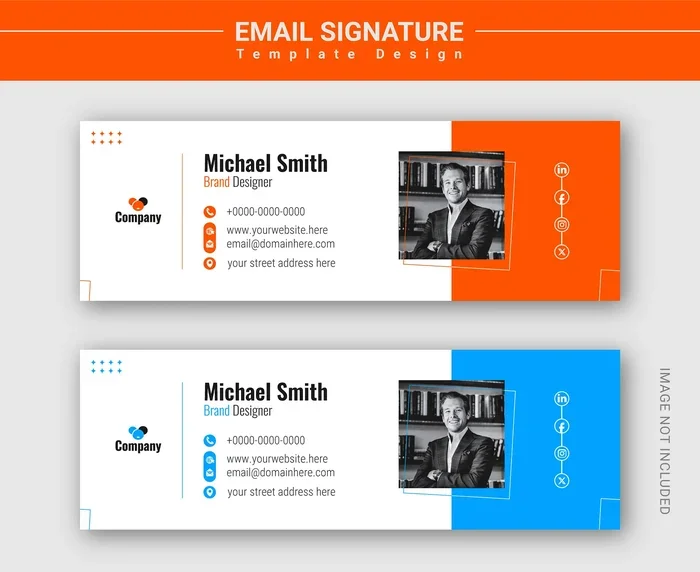
So what exactly is an outlook signature generator, and why should you care? Simply put, it is a tool that helps you design, customize, and deploy professional email signatures inside Microsoft Outlook. Instead of typing your name, title, phone number, and logo every single time, you let the tool do the heavy lifting. The result? A clean, consistent signature that works across every email you send.
In this guide, we will explore everything you need to know about using an outlook signature generator. We will cover how these tools work, what features matter most, and how to pick the right one for your needs. By the end, you will know exactly how to create a signature that looks sharp and saves you time every single day.
Key Takeaways
- Saves Time: An outlook signature generator creates professional signatures in seconds, so you never format from scratch again.
- Boosts Branding: Consistent signatures build trust and make your emails look polished across every message you send.
- Easy to Use: Most tools are beginner-friendly and require no coding or design skills to get started.
- Customizable: You can add logos, social icons, banners, and contact details with just a few clicks.
- Mobile-Friendly: The best generators ensure your signature looks great on desktop and mobile devices.
- Cost-Effective: Many free and affordable options exist, so you don’t need a big budget to look professional.
📑 Table of Contents
- Why Every Professional Needs an Outlook Signature Generator
- How to Choose the Best Outlook Signature Generator
- Top Features to Look For in a Signature Generator
- Step-by-Step Guide to Creating Your Outlook Signature
- Common Mistakes to Avoid When Using a Signature Generator
- Expert Tips for a Standout Outlook Signature
- Benefits of Using a Signature Generator for Teams
- Final Thoughts
Why Every Professional Needs an Outlook Signature Generator
You might wonder why a simple email signature deserves so much attention. The truth is, your email signature is one of the most viewed pieces of content in your entire workflow. Every email you send carries it. Every reply, every forward, every quick note it travels with you. That makes it a powerful branding asset you should not ignore.
Here are some strong reasons to use an outlook signature generator right away:
- Consistency across teams: When multiple people on your team send emails, a generator ensures everyone uses the same format and branding.
- Time savings: Designing a signature from scratch takes minutes, but updating it manually across dozens of emails takes hours over time.
- Professional appearance: A clean signature signals that you take your work seriously. It builds trust with clients and partners.
- Easy updates: Need to change your phone number or add a new social link? With a generator, you update once and it applies everywhere.
- Marketing exposure: Signatures can include banners, promo links, and social media icons that quietly promote your brand.
Think of your outlook signature generator as a small but mighty marketing assistant. It works silently in the background, making every email you send look its best. You set it up once, and it pays off every single day.
How Does an Outlook Signature Generator Work?
You might ask, how does a generator work in the context of email signatures? The process is simpler than you might think. Most tools follow a straightforward three-step flow that anyone can use.
First, you choose a template. Templates come in many styles, from minimalist and clean to bold and colorful. You pick the one that matches your brand personality. Second, you customize the content. You add your name, job title, company name, phone number, email address, website, and social media links. You can also upload a logo or choose a banner image. Third, you generate the signature code. The tool creates the HTML and formatting needed to display your signature correctly inside Outlook.
Once generated, you copy the code and paste it into your Outlook signature settings. From that point forward, every new email you compose will include your polished signature automatically. It really is that easy.
How to Choose the Best Outlook Signature Generator
Not all outlook signature generators are created equal. Some are packed with features, while others keep things simple. Choosing the right one depends on your specific needs, budget, and technical comfort level. Let us break down what to look for.
Ease of Use
The best tool for you is one you will actually use. Look for a generator with a clean, intuitive interface. You should be able to create a signature without reading a lengthy manual or watching a long tutorial. If a tool feels confusing during the trial phase, it probably will not get better over time.
A good outlook signature generator lets you preview your signature in real time. You see changes instantly as you type or drag and drop elements. This live preview feature saves you from guessing what your signature will look like before you send it out.
Customization Options
Your email signature should reflect your unique brand. That means you need a generator that offers plenty of customization options. Look for tools that let you:
- Change fonts, colors, and text sizes
- Add or remove social media icons
- Upload custom logos and images
- Adjust spacing and layout
- Add promotional banners or disclaimers
The more control you have, the more professional your final signature will look. A limited tool might get the job done, but a flexible one lets you stand out from the crowd.
Compatibility with Outlook
Not every signature tool plays nicely with Microsoft Outlook. Some generators produce code that works great in Gmail but breaks apart in Outlook. Before you commit to any tool, make sure it specifically supports Outlook formatting. The best outlook signature generator options test their output across different Outlook versions to ensure a smooth experience.
Pricing and Value
Cost matters, especially for small businesses and freelancers. Many generators offer free tiers with basic features. Paid plans usually unlock advanced options like team management, analytics, and priority support. When evaluating pricing, think about the value you get, not just the price tag. A $10 tool that saves you 30 minutes every week is worth far more than a free tool that frustrates you.
Top Features to Look For in a Signature Generator
When comparing different outlook signature generators, certain features stand out as must-haves. Here is what you should prioritize:
Drag-and-Drop Editor
A drag-and-drop editor makes building your signature feel like playing with building blocks. You add elements, move them around, and resize them without touching a single line of code. This feature is especially helpful for people who are not tech-savvy. It keeps the process fun and stress-free.
Responsive Design
Many people check their email on phones and tablets. Your signature needs to look great on every screen size. A responsive design automatically adjusts your signature layout to fit the device. Without this feature, your carefully crafted signature might look messy on a mobile screen, which hurts your professional image.
Team Management
If you manage a team, you need a generator that supports multiple users. Team management features let you create one master signature template and roll it out to everyone on your staff. This ensures brand consistency across all outgoing emails. It also makes updates a breeze, since you change the template once and everyone gets the new version.
Analytics and Tracking
Some advanced generators include analytics that track how often people click the links in your signature. This data helps you understand which social profiles, website pages, or promotions get the most attention. While not every tool offers this, it is a powerful feature for marketers and business development professionals.
Brand Kit Integration
If your company has a brand kit with specific colors, fonts, and logo files, look for a generator that supports brand kit integration. This feature pulls your brand assets directly into the signature creation process. It keeps everything on-brand and saves you from hunting down files every time you make a change.
Step-by-Step Guide to Creating Your Outlook Signature
Ready to build your signature? Here is a simple walkthrough to get you started. Follow these steps and you will have a professional signature in under 15 minutes.
Step 1: Pick Your Tool
Choose an outlook signature generator that fits your needs. Try a few free options before committing to a paid plan. Most reputable tools offer free trials or basic free versions that let you test the waters.
Step 2: Choose a Template
Browse the template library and pick a style that matches your brand. If you work in a conservative industry like finance or law, go with a clean, minimal design. If your brand is creative and bold, feel free to choose something more colorful and dynamic.
Step 3: Add Your Details
Fill in your name, title, company, phone number, email, and website. Add social media icons for LinkedIn, Twitter, and any other platforms relevant to your work. Make sure every link goes to the correct profile or page.
Step 4: Upload Your Logo
Upload your company logo or personal headshot. Keep the file size small to avoid bloating your email size. A good rule of thumb is to keep images under 50 KB for the best performance across email clients.
Step 5: Generate and Install
Click the generate button and copy the code the tool provides. Open Outlook, go to your signature settings, and paste the code. Save your changes and send a test email to yourself. Check that everything looks right on both desktop and mobile.
If you are wondering how to start a generator for your signature workflow, this step-by-step process is the perfect starting point. Keep it simple, keep it consistent, and let the tool handle the technical details.
Common Mistakes to Avoid When Using a Signature Generator
Even with the best outlook signature generator, mistakes can happen. Here are common pitfalls to watch out for:
- Overloading your signature: Too many images, banners, or links make your signature heavy and distracting. Keep it clean and focused on the essentials.
- Ignoring mobile viewing: Always test your signature on a phone before finalizing. A signature that looks perfect on desktop but breaks on mobile defeats the purpose.
- Using outdated information: An old phone number or wrong email address hurts your credibility. Update your signature whenever your contact details change.
- Forgetting to test across email clients: Outlook, Gmail, Apple Mail, and Yahoo Mail all render HTML differently. Test your signature in at least two clients before rolling it out.
- Skipping the disclaimer: If your industry requires confidentiality notices or legal disclaimers, make sure your generator includes them. Missing legal text can create compliance issues.
Avoiding these mistakes keeps your signature looking professional and functioning properly. A clean, well-maintained signature reflects well on you and your brand every single time someone opens your email.
Expert Tips for a Standout Outlook Signature
Want to take your signature to the next level? These expert tips will help you create something memorable and effective:
- Keep it concise: Aim for no more than four to six lines of text. Your signature should complement your email, not overwhelm it.
- Use a professional headshot: If appropriate for your role, a small headshot adds a personal touch and makes your email feel more human.
- Add a call to action: Include a link to your calendar, booking page, or latest blog post. A gentle nudge drives engagement without being pushy.
- Match your brand colors: Use your company’s brand colors for text, dividers, and backgrounds. This creates a seamless visual experience.
- Make social icons subtle: Use small, clean icons for social links. They should support your signature, not dominate it.
- Test before deploying: Always send test emails to yourself and a colleague. Check for rendering issues, broken links, and formatting problems.
By following these tips, your outlook signature generator becomes more than a formatting tool. It becomes a strategic branding asset that works for you around the clock.
How to Keep Your Signature Clean and Minimal
A clean signature performs better than a cluttered one. When you make a generator quiet by stripping away unnecessary elements, the result is a focused, elegant signature that people actually want to read. Remove decorative borders, skip flashy banners, and stick to essential information. Your contacts will thank you for the clean experience.
Benefits of Using a Signature Generator for Teams
If you manage a team or run a business, an outlook signature generator with team features offers huge advantages:
- Brand consistency: Every team member uses the same signature format, reinforcing your brand with every email sent.
- Centralized control: Update the master template once, and every team member gets the new version automatically.
- Onboarding made easy: New hires get a professional signature on day one without needing design skills or IT support.
- Compliance assurance: Legal disclaimers and regulatory notices are built into every signature, reducing the risk of non-compliance.
- Time savings for IT: IT teams spend less time troubleshooting signature issues and more time on strategic priorities.
Team-oriented generators also often include analytics dashboards. You can see how many signatures are active, which links get clicked most, and whether team members are using the tool correctly. This data helps you refine your approach and get more value from your investment.
Final Thoughts
An outlook signature generator is one of the simplest yet most impactful tools you can add to your professional workflow. It saves time, strengthens your brand, and ensures every email you send looks polished and purposeful. Whether you are a solo professional or managing a large team, the right generator makes a noticeable difference.
Start by identifying your needs. Do you want a free tool for personal use, or a team solution with advanced features? Pick a generator with the features that matter most to you, follow the steps outlined in this guide, and watch your email communication level up. Your signature is always working, so make sure it works for you.
The best part? You can set it up today and start seeing results in your very next email. Do not wait for the perfect moment. Build your professional signature now and let every message you send make a strong, lasting impression.
Frequently Asked Questions
What is an outlook signature generator?
An outlook signature generator is a tool that helps you design and create professional email signatures for Microsoft Outlook. It uses templates and drag-and-drop editors so you can build a polished signature without any coding or design skills. The tool generates the HTML code you paste into Outlook to activate your signature automatically.
Are free outlook signature generators any good?
Yes, many free generators offer solid features for personal use. They typically include basic templates, standard customization options, and easy setup. However, paid plans usually unlock advanced features like team management, analytics, and more templates. For most professionals, a free tier is more than enough to get started.
Can I use an outlook signature generator with Outlook on my phone?
Most modern generators create responsive signatures that work across devices. When you build your signature with a quality tool, it automatically adjusts to look good on desktop Outlook, the Outlook mobile app, and web-based Outlook. Always test your signature on your phone after setting it up to confirm everything displays correctly.
How long does it take to create a signature with a generator?
Most people can create a complete signature in 10 to 15 minutes. The process involves choosing a template, adding your details, uploading a logo, and generating the code. Even if you are new to the process, the intuitive editors make it quick and painless. Once installed, your signature works automatically on every email.
Do I need HTML knowledge to use an outlook signature generator?
Not at all. The whole point of these tools is to make signature creation easy for everyone. You work with visual editors, drag and drop elements, and fill in text fields. The generator handles all the HTML behind the scenes. You simply copy and paste the final code into Outlook, no coding required.
Can I update my signature after I create it?
Absolutely. One of the biggest advantages of using an outlook signature generator is how easy updates are. When your phone number changes or you get a new title, you simply log back into the tool, make your edits, regenerate the code, and replace the old signature in Outlook. The change applies to all future emails instantly.