Every image tells a story, but not every image tells it well. The art of Cropping and Rotating Images can completely change how a visual feels, turning an average shot into something amazing. These two editing techniques may seem minor, but they’re at the heart of every professional-looking photo. Whether you’re a photographer, content creator, or blogger, learning to use these tools smartly will elevate your work.
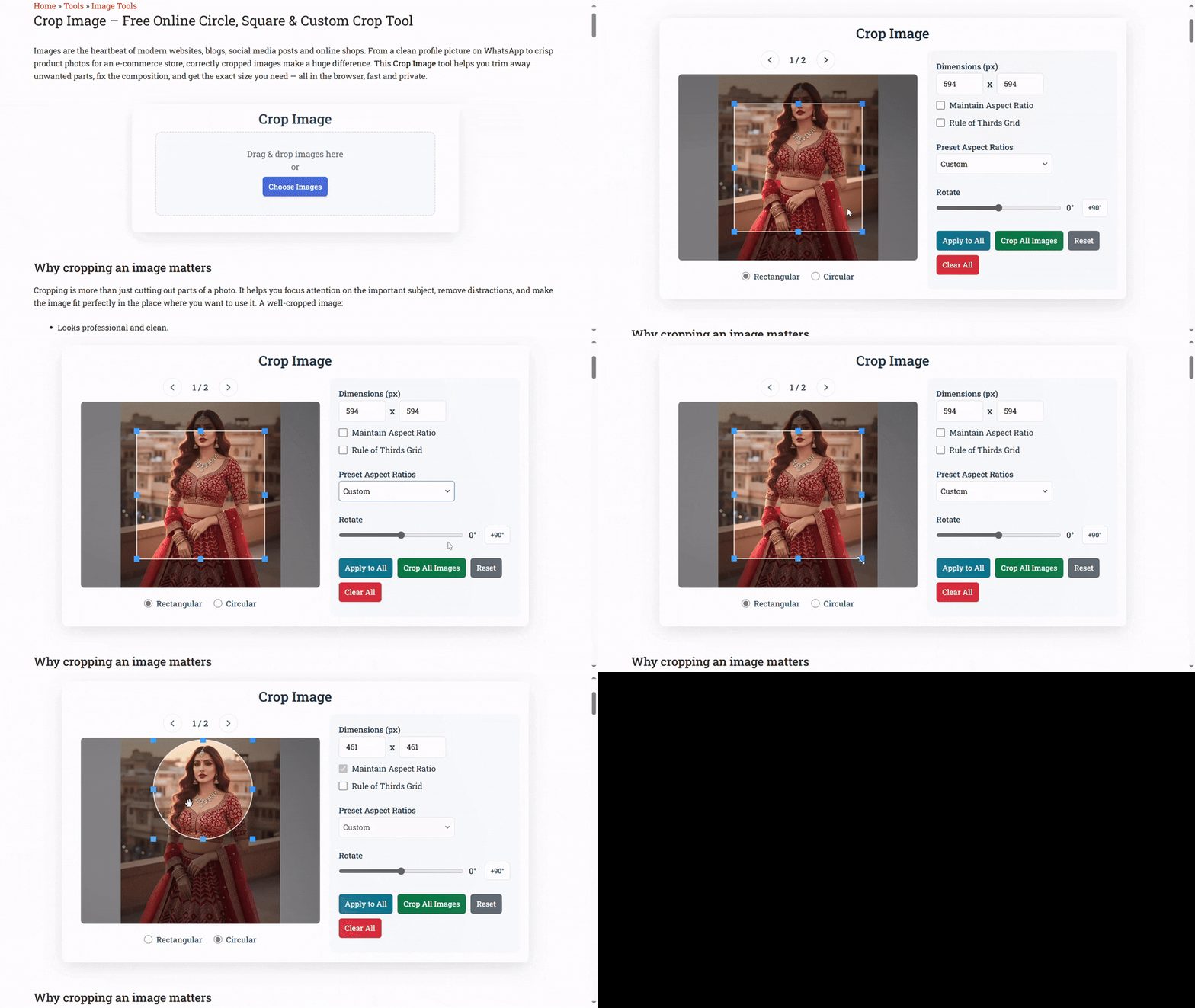
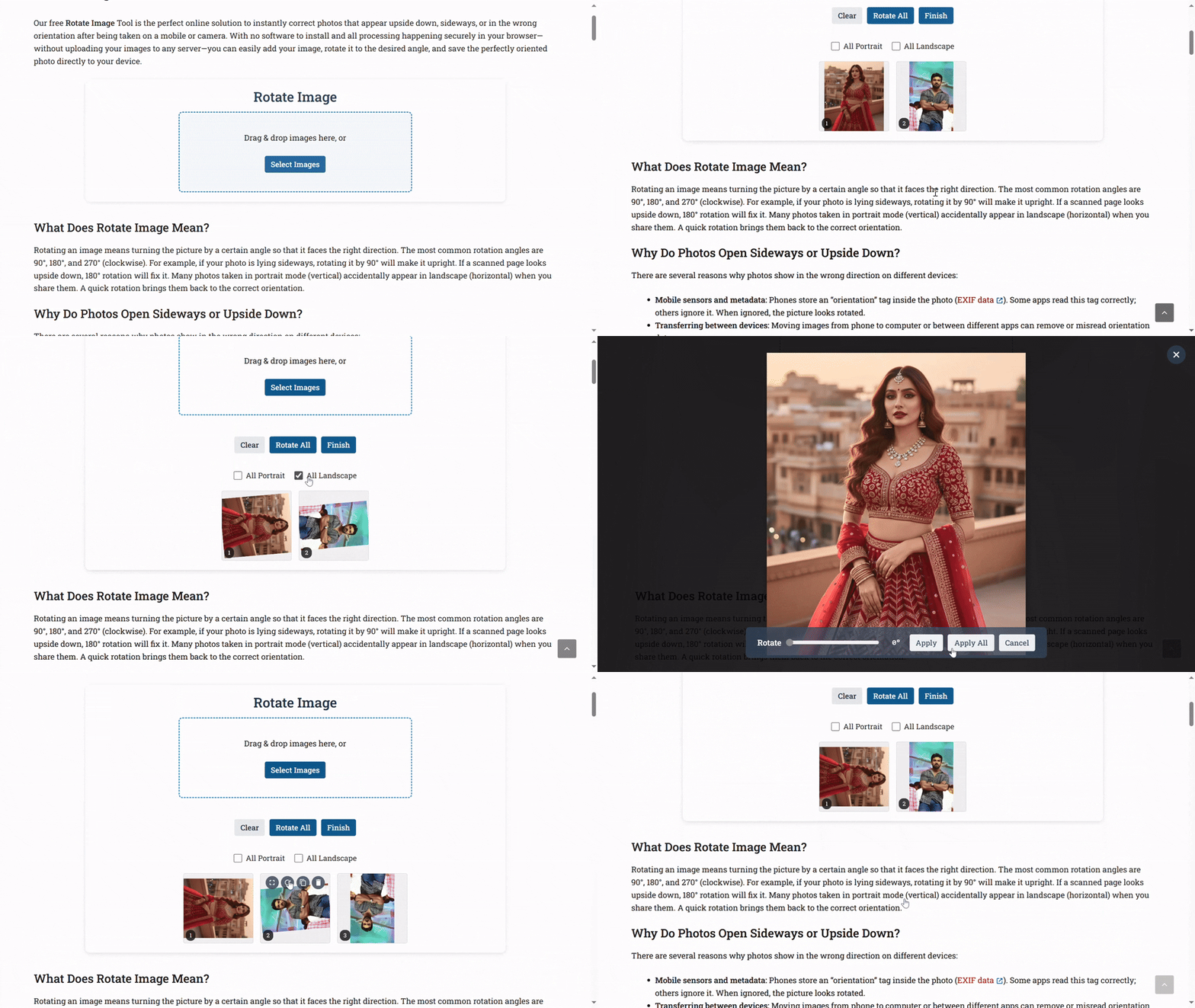
With online tools like SoulaTools Crop Image and SoulaTools Rotate Image, you no longer need heavy editing software. You can make quick, precise edits right from your browser — maintaining privacy and saving time. Let’s explore 15 smart and creative ways to use cropping and rotation effectively to enhance your images and make your visual content truly stand out.
1. Understand the Real Purpose Behind Cropping and Rotation
Why Purpose Matters Before You Edit
Before you start dragging crop boxes or rotating sliders, ask yourself — “Why am I doing this?” Cropping and rotation aren’t just technical steps; they’re storytelling tools. Every image has a message, and your job is to make that message clear. Cropping helps remove what doesn’t belong in the story. Rotation helps align and balance the frame so the story feels natural.
Example: Turning a Casual Click into a Professional Shot
Imagine taking a photo of a coffee mug on a table. The mug looks great, but the tilted table edge and messy background ruin the mood. By rotating the image slightly and cropping out distractions, you create focus, balance, and harmony. The result feels intentional — a shot that communicates calm and style instead of clutter.
Tip: Always Edit With Intent
Every crop should highlight, not hide. Every rotation should correct, not distort. When you edit with intention, your images reflect professionalism and confidence.
2. Maintain Aspect Ratio for Consistent Visuals
What Is Aspect Ratio?
The aspect ratio is the proportional relationship between an image’s width and height. For instance, 1:1 is a square (perfect for Instagram), 16:9 is widescreen (ideal for YouTube thumbnails), and 4:3 is a classic rectangle (common in photography). Maintaining aspect ratio keeps your visuals consistent across different platforms.
Why It Matters
Changing the aspect ratio randomly can cause distortion — stretching faces, warping objects, or cutting off essential parts of your composition. Consistent ratios help maintain brand uniformity. If your blog banners or product photos follow the same ratio, your website looks professional and cohesive.
How to Keep Aspect Ratio Intact
- Use a cropping tool that allows aspect ratio locking.
- Decide the ratio before cropping — not after.
- When resizing, maintain proportional scaling (avoid “free resize”).
On SoulaTools Crop Image, you can easily crop images to a specific ratio — like 16:9 for a banner or 1:1 for a social post — while keeping proportions balanced.
3. Apply the Rule of Thirds for Perfect Composition
What Is the Rule of Thirds?
The rule of thirds divides your image into nine equal parts using two horizontal and two vertical lines. The intersections of these lines are the “power points” — areas where the human eye naturally focuses. Positioning key elements along these lines creates dynamic, well-balanced compositions.
Using Cropping to Fix Composition
Let’s say your subject is dead center — the image feels static. By cropping slightly to move the subject toward one of the rule-of-thirds intersections, you instantly make it more visually engaging. The viewer’s eye naturally moves across the image, creating interest and depth.
Pro Tip: Use Grid Overlays
Many crop tools (including SoulaTools’) display a faint grid overlay when you crop — use it! Align your horizon with a third line, or place your subject on an intersection for stronger composition.

4. Remove Unwanted Distractions
Why Clutter Kills Visual Appeal
A perfect shot can lose its charm if the background is too busy. A passerby in a portrait, a garbage bin in a street photo, or a reflection in a product shot — all can pull attention away from your subject. That’s where cropping saves the day.
How to Identify Distractions
Look at your image and ask: “What’s stealing attention from the subject?” Often, it’s something near the edges — that’s a sign you need to crop. By tightening the frame, you simplify the scene and make it cleaner.
Practical Example
Suppose you photographed a beautiful plate of food, but there’s a napkin corner visible in the corner. Cropping slightly to remove it instantly makes the food pop. The difference may seem small, but in marketing and design, those little details matter.
5. Straighten and Align Your Images
Why Alignment Defines Professionalism
When viewers see a tilted horizon or uneven edge, it subconsciously signals imbalance. In photography, crooked images feel awkward; in product photos, they appear careless. Straightening images through rotation is one of the simplest ways to make them look more polished.
When to Rotate
- If your horizon line isn’t straight (like a sunset photo).
- If vertical objects like buildings or poles lean unnaturally.
- If text or design elements seem slightly off-balance.
How to Rotate Effectively
Use the Rotate Image Tool for precise adjustments. Even a 1° change can transform the visual balance. After rotation, check for empty triangle areas at the edges — then crop slightly to clean them up. This combination creates a perfectly aligned image that feels stable and confident.
Example: Fixing a Crooked Landscape
You took a picture of the beach, but the sea line tilts slightly. Rotate clockwise 1–2 degrees, then crop to remove blank edges. The horizon becomes level, and the image instantly looks more professional — even though the change is barely noticeable.
6. Crop to Tell a Better Story
Storytelling Through Framing
Every image has a story. Cropping lets you decide which part of that story you want people to see. For instance, a travel photo might include several people, buildings, and sky — but cropping to highlight one smiling child or a single landmark creates emotional impact.
Close vs. Wide Crops
- Close Crop: Focuses on emotion, detail, and intimacy. Great for portraits, food, or small objects.
- Wide Crop: Shows context, space, and atmosphere. Ideal for travel, architecture, or landscapes.
Editing Tip
Before cropping, identify your “visual hero.” Everything else should support it or be removed. Cropping isn’t about cutting randomly — it’s about guiding the eye to what matters most.
Example: Emotional Impact
A photo of a football match shows the whole field, but if you crop in on the player celebrating a goal, the emotion becomes the focal point. The viewer connects instantly — that’s the power of storytelling through cropping.
7. Experiment with Creative Rotations
Rotation as a Design Tool
Rotation doesn’t always mean correction — it can be used to add style. A slight tilt can make a product photo feel more dynamic, or give social media graphics a playful, offbeat look. Designers often rotate images slightly to break symmetry and add energy to compositions.
When Creative Rotation Works
- When designing posters or blog banners that need movement.
- For adding an artistic twist to flat, static images.
- When combining multiple images in collages or montages.
How to Avoid Overdoing It
Creative rotation should feel intentional, not accidental. Over-rotating can make an image look awkward or poorly aligned. Stick to subtle angles — 2° to 10° often works best. Use the rotation preview in SoulaTools to test several options before saving.
Example: Adding Energy to a Flat Product Image
You’re designing a promotional banner for a new smartphone. The product photo looks too static. Rotating it slightly and adding a soft shadow gives it a sense of motion — now it pops on the screen and draws attention.
8. Crop for Different Platforms and Devices
Why Platform Optimization Is Crucial
Every platform has its own image size and layout preferences. What looks perfect on Instagram might look cut off on Twitter or blurred on a mobile banner. Cropping according to platform ensures your visuals display properly everywhere — no awkward cuts, no missing details.
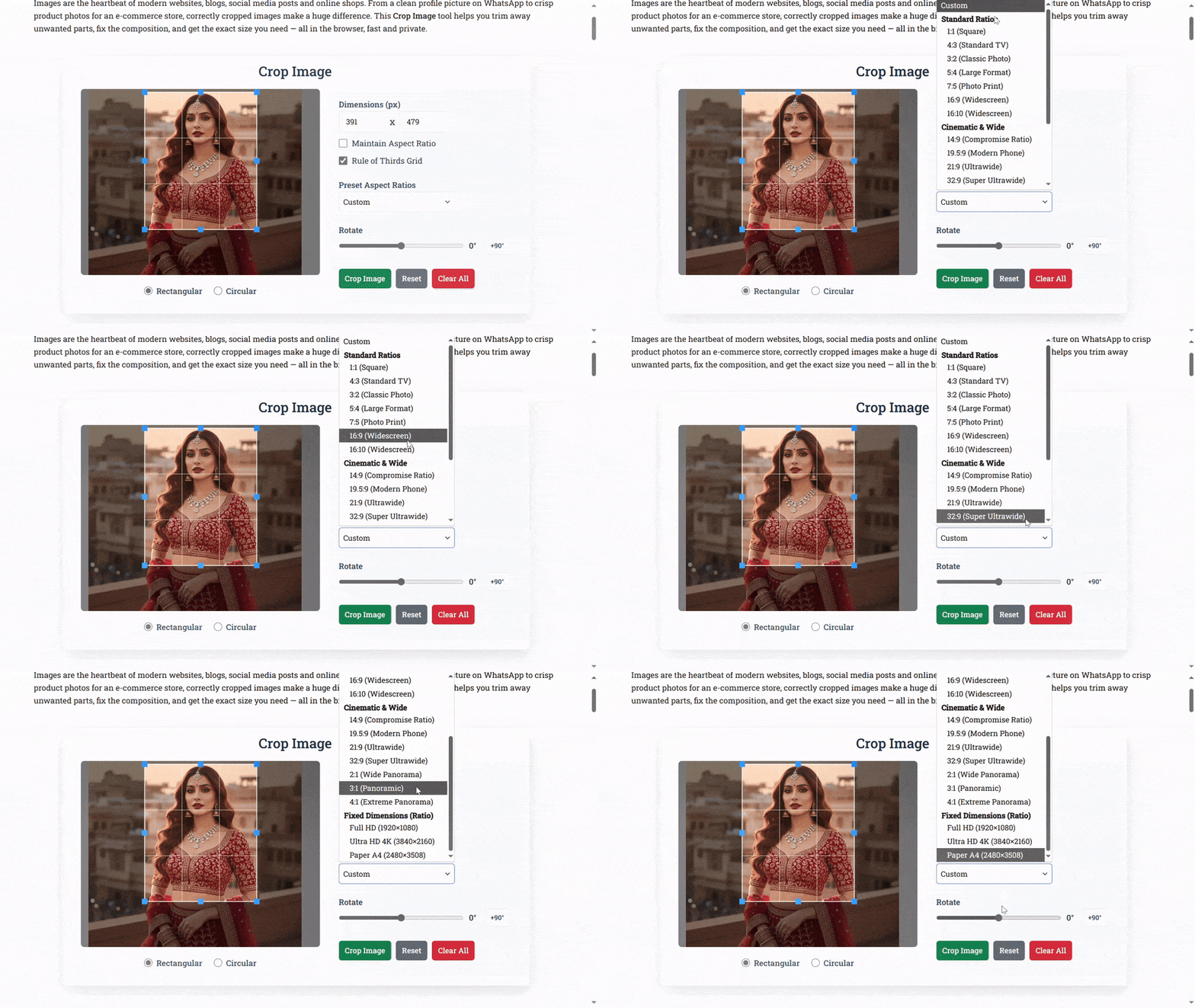
Examples of Ideal Crop Ratios
- Instagram Feed: 1:1 (Square)
- Instagram Story: 9:16 (Vertical)
- Facebook Cover: 820×360 (Wide)
- YouTube Thumbnail: 16:9 (Horizontal)
- Blog Header: 3:1 (Panoramic)
Practical Tip
When you create content for multiple platforms, start with a high-resolution image. Then, use the SoulaTools Crop Image tool to crop versions for each platform. Keeping the subject centered or within safe margins ensures no key detail gets trimmed on any screen size.
Real-World Example
Suppose you post a product photo on Instagram and your e-commerce website. The Instagram square crop works well, but your website’s banner requires a wider shot. Cropping separately for both keeps them sharp and perfectly aligned to their platform’s layout.
9. Focus on Eyes and Expressions in Portraits
Why Eyes Define a Portrait
In human photography, the eyes are the emotional anchor. A viewer connects through the eyes first — they express emotion, confidence, and connection. When cropping portraits, always ensure the eyes are visible and placed around the upper third of the frame.
Do’s and Don’ts
- Do: Crop above the shoulders for profile shots to emphasize expression.
- Do: Leave enough headroom to avoid cramped composition.
- Don’t: Cut through joints like elbows or the chin — it feels abrupt.
Using Rotation for Portraits
Sometimes portrait photos tilt slightly, especially selfies or handheld shots. Use the Rotate Image tool to straighten the background or horizon while keeping the subject natural. A balanced portrait looks professional and confident.
Example
Imagine a graduation photo where the student leans slightly to one side. By rotating the frame to align the shoulders and cropping to focus on the smile, you instantly elevate it into a timeless portrait.
10. Highlight Product Features for E-Commerce
Why Product Focus Matters
Online shoppers judge products visually. A well-cropped, neatly rotated image communicates professionalism and quality. You only have seconds to make an impression — so the focus must be sharp, aligned, and clutter-free.
Smart Cropping for E-Commerce
- Crop tightly around the product to remove empty space.
- Maintain symmetry — centered products feel more trustworthy.
- Use a uniform aspect ratio for all product images for brand consistency.
When to Rotate Product Photos
Rotation helps when your product isn’t perfectly aligned with the camera. A slightly tilted box or bottle can appear distorted. Straighten it using SoulaTools before uploading — even small corrections make the product appear more professional.
Example: Jewelry Photography
A necklace photographed at an odd angle can look cheap. Rotate slightly until it hangs symmetrically, then crop to fill the frame. The result? A polished image that looks worthy of a premium listing.
11. Use Cropping to Create Focus and Depth
Guiding the Viewer’s Eye
Cropping directs where the viewer looks first. A wide photo with many subjects can confuse the eye, but cropping can isolate one focal point, creating emotional depth and clarity. The more direct the focus, the stronger the visual storytelling.
Foreground, Midground, Background
- Foreground: Creates intimacy and engagement.
- Midground: Tells the main story (subject).
- Background: Adds context and mood.
How Cropping Adds Depth
By removing unnecessary foreground elements or trimming excess background, you give more space for the main subject. This makes the photo feel three-dimensional and visually rich.
Example
A landscape photo with too much sky may feel flat. Cropping from the top to emphasize the horizon line and the objects on the ground adds balance and depth, giving the viewer a sense of space.
12. Experiment with Square and Panoramic Formats
Different Crops, Different Feelings
Changing crop shape changes image mood. A square crop feels stable and modern; a panoramic crop feels cinematic and grand. Experimenting with these can dramatically alter perception — all without advanced editing.
When to Use Square Crops
- For portraits, product shots, and symmetrical subjects.
- When you need minimalism and balance.
- Perfect for Instagram or logo-centric posts.
When to Use Panoramic Crops
- For landscapes, group photos, and architectural designs.
- When you want to create cinematic or story-like framing.
Tip: Start Wide, Then Crop Narrow
Always shoot or choose a wider image first. This gives you flexibility to experiment with both square and wide formats later without losing quality. Using SoulaTools Crop Image, you can quickly preview multiple ratios before saving the perfect one.
13. Fix Perspective Issues Through Rotation
Understanding Perspective Distortion
Photos taken at an angle can make buildings or objects appear to lean backward or sideways. Rotating and slightly cropping can minimize this distortion, creating a more natural look. This is particularly useful in architectural or interior photography.
How to Correct Perspective with Rotation
- Identify vertical or horizontal lines (e.g., walls, windows).
- Rotate slightly to align those lines with the frame edges.
- Crop out any blank spaces created after rotation.
Example
When photographing tall buildings, you often tilt the camera upward, which makes them appear as if they’re “falling back.” Rotating and cropping can subtly fix this effect, restoring realism and balance to your photo.
14. Enhance Storytelling Through Sequential Crops
Creating Visual Narratives
Sometimes one photo contains multiple stories. By cropping it in different ways, you can highlight each moment separately. This technique is often used in storytelling, journalism, or social media campaigns to create emotional sequences.
How to Apply Sequential Cropping
- Identify multiple points of interest in a single image.
- Crop them individually into separate frames.
- Use them as a series — each telling part of a larger story.
Example: Event Photography
At a concert, one photo might capture the artist, the crowd, and the stage lights. By cropping separate versions — one focused on the singer, another on the audience — you create a series that captures the full experience. Each crop adds perspective and emotion.
15. Combine Cropping and Rotation for Maximum Impact
Why These Two Go Hand in Hand
Cropping and rotation are best friends in image editing. Rotation corrects orientation; cropping refines the frame. Used together, they create perfectly balanced visuals that look professional and artistic. This combination ensures every image looks clean, aligned, and purposeful.
Workflow Example
- First, rotate to fix tilt or perspective.
- Then crop to refine composition and remove edges.
- Finally, adjust aspect ratio for your chosen platform.
Practical Example
You took a product photo that’s slightly tilted and off-center. Rotate to fix alignment, then crop tightly around the product to remove excess space. The result feels sharp, focused, and ready for your website — no professional editor needed.
Pro Tip
Save your edits in stages — especially for marketing visuals. Having both the raw and cropped versions allows you to adapt for different campaigns later without starting over.
Conclusion: Precision Editing Made Simple
Cropping and rotating images may seem like simple tasks, but they carry the power to transform your visuals completely. They improve balance, composition, and focus — qualities that define professional design. Whether you’re preparing photos for social media, online stores, or personal projects, mastering these two tools helps you communicate clearly and attractively.
Thanks to user-friendly online tools like SoulaTools Crop Image and SoulaTools Rotate Image, anyone can achieve high-quality results without complex software. Each edit you make is processed directly in your browser — no uploads, no delays, no data sharing. It’s privacy-friendly and efficient. So, next time you work on visuals, remember — a perfect image isn’t taken; it’s refined with smart cropping and rotation.