Images play a vital role in today’s digital world — from websites and blogs to social media and eCommerce stores. A single high-resolution picture can tell a story, capture attention, and create a lasting impression. But the truth is, large image files often slow down websites, consume bandwidth, and affect search engine rankings. That’s where image compression comes in — reducing file sizes without compromising on visual clarity.
Smart compression is about more than shrinking files; it’s about learning how to compress images without losing quality by maintaining the delicate balance between performance and presentation. Modern compression tools make it possible to reduce image sizes by 60–90% while keeping the same level of detail. One such handy browser-based solution is the SoulaTools Image Compressor — a free online tool that quickly reduces image sizes while preserving visual quality, privacy, and efficiency. But before you start compressing, it’s essential to understand the smartest ways to do it correctly.
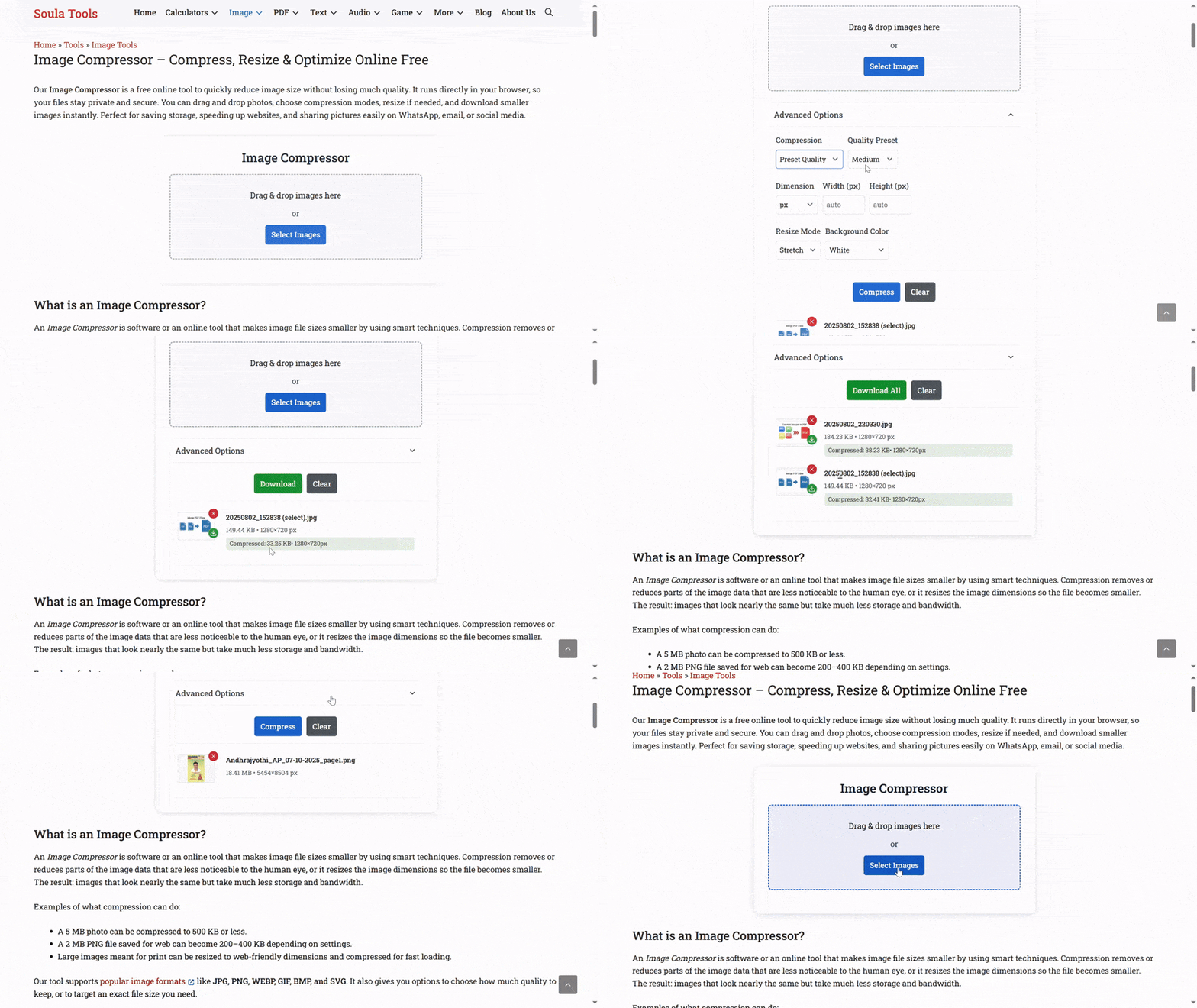
Here are 15 smart and practical ways to compress images without losing quality — perfect for photographers, designers, bloggers, developers, and anyone who wants faster, cleaner visuals online.
1. Choose the Right Image Format
Choosing the right image format is the first step toward smart compression. Every format has a unique purpose and compression capability. Using an unsuitable format can make your image unnecessarily large. Here’s how to decide:
- JPEG: Ideal for photographs and realistic scenes. It uses lossy compression but allows adjustable quality levels.
- PNG: Best for graphics, icons, and logos that need transparency or crisp edges.
- WebP: The modern standard that provides superior compression without visible quality loss.
- SVG: Used for simple vector graphics that can scale infinitely without increasing file size.
By choosing the correct format at the start, you can avoid over-compression later. If your images are already in a less-than-ideal format, you can easily switch them using an image converter. For example, replacing a PNG photo with a WebP version can reduce its size by up to 70% with no visible difference.
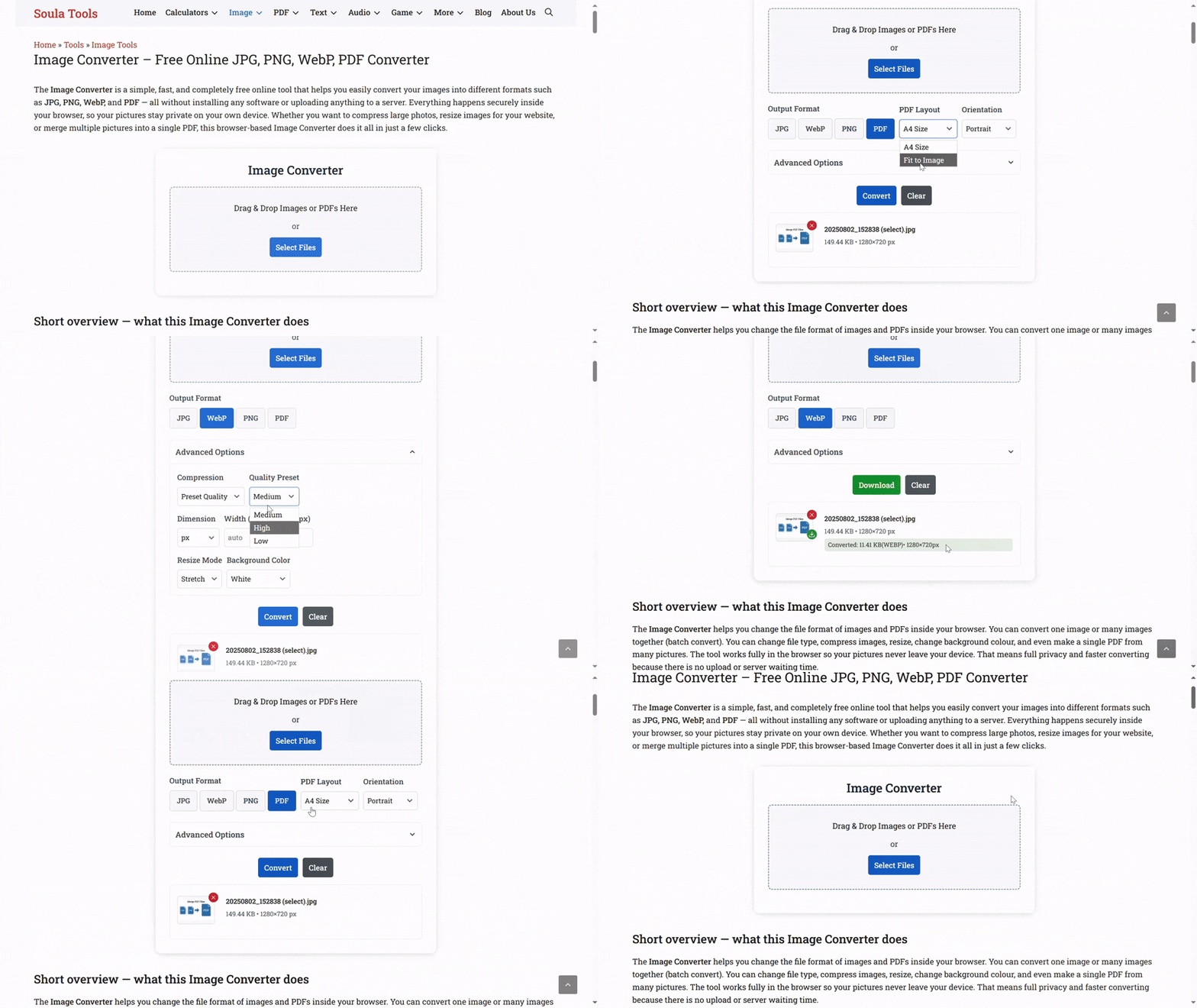
2. Resize Images to Appropriate Dimensions
One of the most common mistakes is uploading massive, high-resolution images that are never displayed at their full size. For instance, if your website shows images at 1200px width, there’s no need to use a 4000px file. Resizing before compression gives instant benefits:
- Reduces overall file size by 50–80% without losing visual clarity.
- Makes loading faster on all devices, especially mobiles.
- Improves user experience and Google PageSpeed scores.
Always size images according to their display use. For example, thumbnails should be around 300px, and hero banners may range from 1200–2000px depending on your layout.
3. Remove Unnecessary Metadata
Every image stores hidden data such as camera details, GPS location, and editing information. While useful for photographers, this metadata adds bulk to files. Removing metadata doesn’t change the image visually but can reduce file size significantly.
Many compression tools automatically strip metadata. Doing this manually using software like Photoshop or browser-based compressors ensures your files are lighter and privacy-safe. For bloggers and businesses, removing metadata is especially smart — it prevents unnecessary data exposure and saves storage space.
4. Convert PNGs to WebP for Web Publishing
PNG files are popular because they maintain transparency and clarity, but they’re often larger than needed. Converting them to WebP format can reduce file size by 40–60% without losing sharpness or transparency.
WebP is now supported by all major browsers, making it ideal for websites. For instance, a 600KB PNG can become a 150KB WebP — loading four times faster while looking identical. This small change alone can dramatically boost website performance.
5. Use Lossless Compression When Detail Matters
Lossless compression means shrinking images without removing any data. It’s ideal for documents, product photos, or medical images where detail is non-negotiable. Lossless compression techniques identify repetitive patterns and compress them mathematically rather than deleting information.
While lossless compression doesn’t reduce file sizes as much as lossy methods, it guarantees that your image remains pixel-perfect. This makes it perfect for professionals who can’t afford even slight quality degradation.
6. Adjust Quality Settings Carefully
When compressing JPEGs, a common trap is to aim for “100% quality.” But in reality, anything above 85% produces nearly identical visuals with double the file size. Smart compression is about finding the sweet spot where the image still looks perfect but loads much faster.
Try lowering the quality setting slightly — usually between 70% and 85% — to reduce file size drastically. The human eye can’t detect these minor differences, but your website’s loading speed will thank you.
7. Batch Compress Multiple Images Together
If you manage an online store, travel blog, or photography portfolio, you likely handle dozens or hundreds of images at once. Manually compressing them is inefficient. Batch compression allows you to process multiple images simultaneously while maintaining uniform quality.
Tools that support batch processing save hours of manual effort. They also ensure consistency in file size, making it easier to keep your website fast without repetitive work.
8. Use Browser-Based Image Compression Tools
Browser-based tools are the most convenient way to compress images securely. Unlike online services that upload your files to external servers, browser tools process everything locally — ensuring privacy and speed. This means your images never leave your device.
For users who handle sensitive or professional images, this is the best approach. It avoids server dependency, speeds up workflow, and provides instant results. Browser-based tools like SoulaTools’ Image Compressor offer these advantages effortlessly.
9. Optimize Image Resolution for Screen Use
Resolution plays a huge role in file size. Most screens don’t need 300 DPI (dots per inch) — that’s a print standard. For digital use, 72 DPI is enough. Reducing DPI while keeping the same pixel dimensions can save a lot of space without visual impact.
Always match your image’s resolution to its final use. For print, keep high DPI; for websites, reduce it to digital-appropriate values. This small adjustment can shrink files dramatically without touching image quality.
10. Use Vector Graphics for Simple Designs
Not all visuals need to be raster images (made of pixels). For flat designs, logos, and icons, using vector graphics such as SVG files makes more sense. They’re lightweight, resolution-independent, and look perfect on all screen sizes.
Vectors are mathematically scalable, meaning they maintain sharpness regardless of zoom level. Replacing simple raster images with SVGs can reduce total image weight on a webpage by more than 90%.
11. Try Lazy Loading for Large Galleries
Lazy loading is a web optimization technique that defers loading images until they’re visible on the screen. While it doesn’t directly compress images, it prevents unnecessary data from being loaded all at once.
For websites with many images — like portfolios or eCommerce stores — lazy loading paired with compression can improve user experience dramatically. Visitors only download what they need, reducing bandwidth usage and server load.
12. Experiment with Advanced Compression Algorithms
Different algorithms deliver different results. For example:
- MozJPEG: Offers higher compression for JPEGs with minimal visual loss.
- Guetzli: Google’s algorithm for ultra-efficient image compression with smooth gradients.
- AVIF: A modern format offering even smaller sizes than WebP.
Trying different algorithms helps you find the best balance between quality and speed. For example, Guetzli produces slightly smaller files than MozJPEG but takes longer to process — ideal for final outputs where quality matters most.
13. Avoid Compressing the Same File Repeatedly
Repeated compression can cause cumulative quality loss, especially in lossy formats like JPEG. Each time an image is re-saved, it loses more detail. To prevent this, always keep a backup of the original image and compress only once before publishing.
If you need multiple versions (for social media, web, or print), generate them all from the original rather than from previously compressed copies. This ensures each version remains clean and sharp.
14. Preview Before Saving Your Final File
Previewing before saving lets you visually compare the compressed result with the original. It helps you detect subtle differences that might go unnoticed until after publishing. Some tools provide side-by-side previews that allow pixel-level comparisons.
Always zoom in and check important areas — such as edges, text, or faces — to ensure that compression hasn’t caused unwanted artifacts. Once satisfied, save and use the final version confidently.
15. Automate Compression in Your Workflow
For developers and businesses handling constant image uploads, automation is key. Integrate compression scripts or plugins into your workflow so every image is automatically optimized on upload. This ensures consistent quality and prevents human error.
Platforms like WordPress have plugins for this, but you can also use command-line tools or APIs for more control. Automated compression is the future — it keeps your website lightweight without needing manual oversight.
Bonus Tip: Test Image Performance Regularly
Even after compression, it’s smart to test your images using tools like Google PageSpeed Insights or GTmetrix. These tools show whether your visuals are optimized for fast loading. If an image still appears large, try adjusting its resolution, format, or compression level again for the best results.
Conclusion
Image compression isn’t just a technical process — it’s an art of balance. You want your visuals to stay stunning while ensuring your website loads in seconds. By using the smart techniques above, you can significantly reduce file sizes without sacrificing clarity. Whether you’re a photographer preserving detail, a web designer improving performance, or a blogger aiming for better SEO, mastering image compression gives you a competitive edge.
Modern online tools make this process easier than ever. The SoulaTools Image Compressor is one such fast, browser-based solution that helps you shrink images securely without quality loss. It’s private, efficient, and effortless — helping you make your digital presence faster, cleaner, and more professional. Remember, in today’s web world, speed is success — and smart compression is the key to it.